
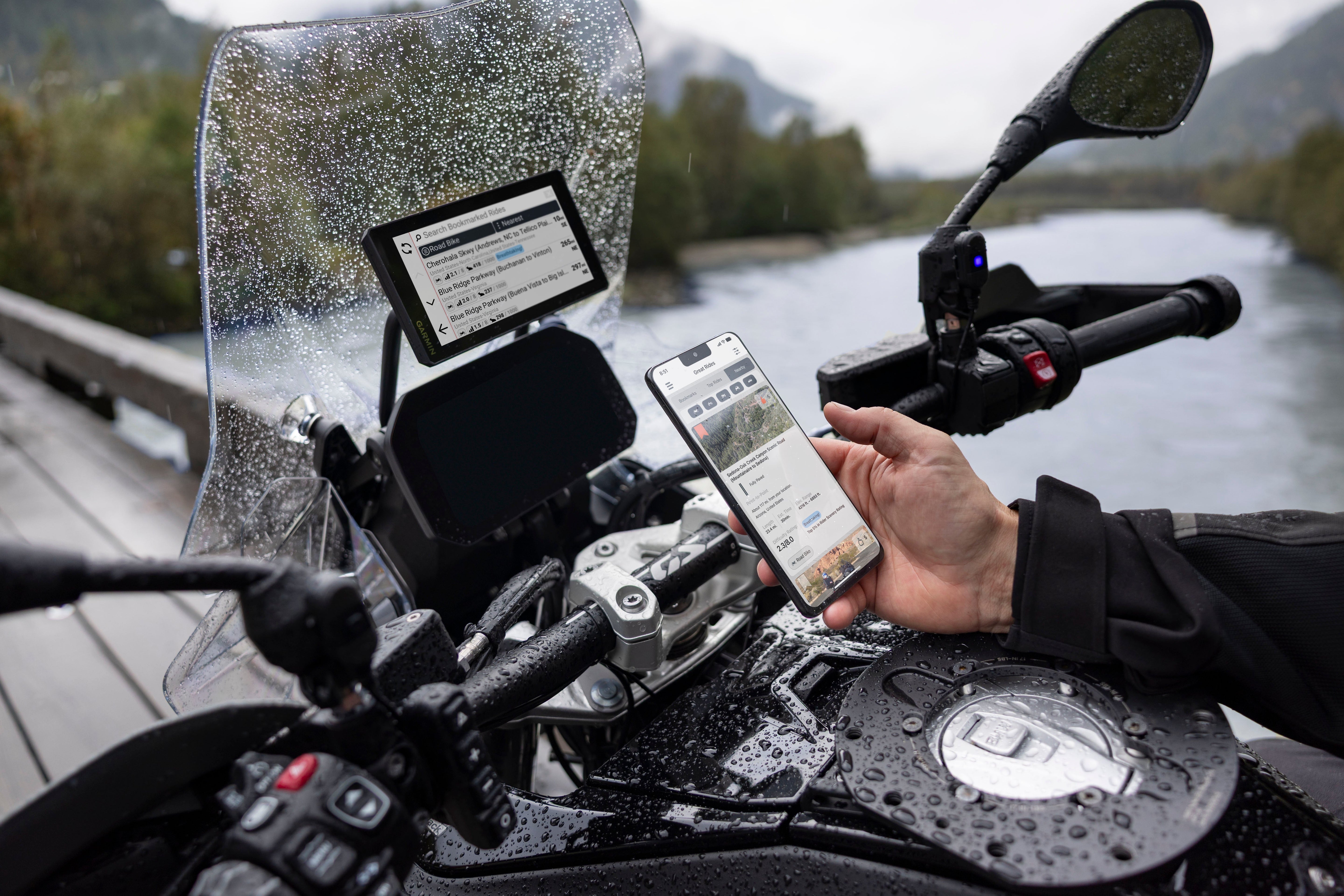
Complete Guide to Connecting Your Sena Headset and Garmin GPS Navigator for Seamless Motorcycle Navigation
Getting your motorcycle tech to play nicely together can feel like solving a multi-dimensional puzzle while wearing riding gloves. For the most seamless connection on the road, your Garmin zūmo XT2/XT3 or Tread should act as the central hub for both your smartphone and your Sena Bluetooth headset. This setup ensures navigation prompts, music, and incoming calls route cleanly without dropped connections or audio lag. Whether you're embarking on a weekend cruise or a cross-country adventure, having your devices properly synchronized will transform your riding experience from frustrating to fluid.
The challenge many riders face is that modern motorcycles come equipped with multiple connectivity options—your bike's built-in dashboard, your smartphone, your GPS unit, and your Bluetooth headset all want to communicate simultaneously. Without proper configuration, these devices compete for bandwidth and priority, resulting in missed turn-by-turn directions, interrupted music, and calls that drop unexpectedly. This comprehensive guide will walk you through the exact steps needed to establish a stable, reliable connection between your Sena headset and Garmin GPS navigator, ensuring every alert, notification, and audio stream reaches you clearly and consistently.
Step 1: Keep Every Device Updated First
Before diving into pairing screens, start with a clean slate by updating every piece of hardware in the chain. Outdated firmware is one of the most common culprits behind connectivity issues, as manufacturers regularly release patches that improve Bluetooth stability, fix audio routing bugs, and enhance device compatibility.
Updating Your Garmin Navigator
Connect your zūmo or Tread directly to a secure home Wi-Fi network. Head to Settings > Updates to download the latest system firmware and map updates over the air. This process typically takes between 15 and 45 minutes depending on your internet speed and the size of available updates. Don't interrupt the update process, and ensure your Garmin has at least 50% battery remaining before starting. Once the update completes, restart your device and verify that the new firmware version appears in Settings > About Device. Updated maps are equally important—outdated mapping data can cause navigation errors and prevent your Garmin from recognizing newer roads and landmarks.
Updating Your Sena Headset
Download the Sena Bluetooth Device Manager application on your computer. This software is available for both Windows and Mac systems and can be found on the official Sena website. Fully charge the headset, power it off completely, and connect it via USB cable to your computer. Run the manager tool to install the newest firmware, then perform a quick factory reset on the headset to clear out old connection profiles. The factory reset is crucial because it removes any corrupted pairing data from previous connections that might interfere with your new setup. After the reset, your Sena will be in a clean state, ready to establish fresh connections with your Garmin and smartphone.
Updating Your Smartphone
Update your iOS or Android device to the latest software release. On iPhone, navigate to Settings > General > Software Update. On Android devices, go to Settings > System > System Update. Be sure to also update the Garmin Drive or Tread companion apps via the App Store or Google Play, as these handle live traffic, GPX transfers, and weather data. These companion apps are essential for unlocking advanced features like real-time traffic rerouting, weather alerts, and the ability to send waypoints directly from your phone to your Garmin. Keeping everything current ensures maximum compatibility across all your devices.
Step 2: Follow the Optimal Pairing Order
To prevent competing Bluetooth signals and establish clear audio priority, follow this precise sequence. The order matters significantly because Bluetooth devices establish hierarchies based on connection timing and device type recognition.
Pair Your Phone to Garmin First
Delete any existing Bluetooth pairings between your phone and your Sena headset. This is essential because residual pairing data can cause your phone to try connecting to the Sena automatically, creating conflicts with your intended setup. Open the Bluetooth menu on the Garmin, choose the option to add a phone, and follow the on-screen prompts. Your Garmin will display a PIN code that you'll need to confirm on your smartphone to complete the pairing. Finish the setup within the Garmin companion app to enable smart notifications and live features. This connection allows your Garmin to receive incoming calls, text messages, and other smartphone notifications, which it can then relay to your Sena headset through the audio chain.
Pair Your Sena to Garmin Second
Put your Sena headset into its dedicated GPS Pairing mode. The specific button combination varies by Sena model—some require holding the multifunction button for five seconds, while others use a combination of the volume and mode buttons. Refer to your specific Sena model guide for the exact procedure. On the Garmin, navigate to Bluetooth settings, select "Add Headset," and choose your Sena from the list of available devices. Complete the pairing process on both devices. This connection establishes your Sena as the audio output device for all Garmin-generated sounds, including turn-by-turn directions, speed alerts, and waypoint notifications.
Bypass Direct Phone-to-Headset Pairing
Do not pair the Sena directly to your phone's Bluetooth menu. This is a critical step that many riders overlook. Letting the Garmin handle all incoming and outgoing audio streams keeps channel priorities straight and prevents your phone from attempting to route audio directly to the Sena, which would bypass your Garmin's navigation prompts. If your phone is already paired with your Sena from previous use, go into your phone's Bluetooth settings and select "Forget This Device" next to your Sena headset. This ensures a clean slate and prevents automatic reconnection.
Step 3: Watch Out for Motorcycle TFT Dashboards
Integrating built-in motorcycle displays adds another layer of complexity that requires careful consideration. Modern motorcycles from manufacturers like BMW, Honda, KTM, and Ducati often feature sophisticated dashboards with Bluetooth connectivity. While these systems offer convenient handlebar controls and integration with your bike's performance data, they can create significant conflicts with your Garmin and Sena setup.
Understanding the Conflicts
If you attempt to make your motorcycle display the master hub so you can use handlebar joystick controls for music and calls, several issues usually arise. Truncated audio prompts represent one of the most frustrating problems—motorcycle displays prioritize media streams, which often cuts off or mutes the first few seconds of zūmo turn-by-turn directions. You might hear "Turn left on..." and miss the street name entirely because the bike's system is still processing the audio stream.
Dual-hub disconnections occur when connecting your phone simultaneously to both the bike's dash and the Garmin. This confuses phone routing protocols, leading to dropped signals and missing track information. Your phone doesn't know which device should receive incoming calls, so it may route them to the motorcycle display while your Garmin is trying to send navigation prompts through the same audio channel.
Intercom muting affects Sena users particularly severely. Sena headsets use dedicated channels to layer background GPS prompts over rider-to-rider intercom calls. Routing audio through the bike's TFT often locks the primary phone channel, blocking background navigation alerts entirely. You might be able to hear your riding partner through the intercom, but you won't hear your Garmin's next turn instruction.
Garmin app feature loss means that on-screen call overlays, live traffic updates, and radar alerts on the Garmin map can become unresponsive if the phone treats the motorcycle dash as its primary output. These features rely on constant communication between your phone and Garmin, which gets interrupted when the phone prioritizes the motorcycle display.
Finding the Right Balance
If you prefer using your bike's handlebar controls for music and phone management, pair both your phone and Sena directly to the motorcycle display instead. To avoid system conflicts, isolate the Garmin zūmo or Tread as a visual-only navigation tool by disabling its Bluetooth audio output. This approach lets you enjoy the convenience of handlebar controls while maintaining reliable navigation on your Garmin screen. You'll see turn-by-turn directions on the GPS display, but audio prompts will come through your Sena via the motorcycle display's audio system.
Alternatively, if you want maximum integration with your Garmin's advanced features, keep the Garmin as your primary audio hub and disable Bluetooth on your motorcycle's TFT dashboard entirely. This requires using your phone or Garmin's touchscreen for music and call management, but it ensures that all navigation alerts, traffic updates, and safety features function without interruption.
Conclusion
Connecting your Sena headset and Garmin GPS navigator requires patience and attention to detail, but the payoff is substantial. A properly configured system delivers crystal-clear navigation prompts, uninterrupted music, and reliable call connectivity throughout your ride. By following these steps—updating all devices, establishing connections in the correct order, and carefully managing motorcycle dashboard integration—you'll transform your riding experience and focus on what matters most: the road ahead and the journey itself.